AI Email Prompts for ChatGPT, Copilot, Claude & Gemini
AI Email Prompts for ChatGPT, Copilot, Claude & Gemini
Couldn't load pickup availability
Email better and faster with any AI
You get:
- 150+ copy-ready AI prompts
- Over 115 pages of experienced advice
- Office Watch independent help & tips since 1996
- Any app: Outlook (Microsoft 365, Office 2024, Office 2021 and earlier), Gmail, Apple Mail or any email in a browser
-
Any AI: ChatGPT, Copilot, Claude or Gemini
- No subscription or extra software needed
- Bonus searchable prompt file
- Instant PDF download
- Not useful? Email us within 14 days for a refund.
This is the plain English guide to using AI for email well and wisely. You stay the writer. AI does the heavy lifting: turning notes into drafts, giving you options, fixing the tone, proofreading and translating. You stay in charge of facts, judgment and voice.
The book is just as clear about the catches, the ones missing from all the marketing hype.
Works with any AI and any email program
No new tools to learn and nothing extra to buy. The prompts and examples work with:
- Copilot, ChatGPT, Claude and Gemini
- Microsoft Outlook (Microsoft 365, Office 2024, Office 2021 and earlier), Gmail, Apple Mail, or any email you read in a browser window
There is also a dedicated chapter on the extra Copilot features built into Outlook with Microsoft 365, including AI Immersive Search, inbox triage, summaries and coaching.

The companion ebook to our enormously popular Writing better & faster with any AI.
What you will actually use it for
- Everyday email: turn rough notes into a draft, get several wording options, and stop losing time to the blank message
- Replies: fast, appropriate answers, including replies built straight from a source document
- The hard emails: condolences, complaints, protest emails, deferring, saying no, and the angry message you should never send exactly as first typed
- Your own writing style: so your email sounds like you, not a press release, with a reusable personal style you can save and call up again
- Proofreading: catch the mistakes spellcheck misses before they go out the door
- Translation: translate a message, sanity check the result, and run a cultural check so you do not cause offense by accident
- Reusable emails: save whole messages or single paragraphs you send over and over, using Quick Steps and other Outlook shortcuts
Great Value
Office Watch ebooks have always been great value. Lots of help and tips for little money.
- A book that can save you hours every week
- A paid AI plan each month costs at least double the one-time price of Email better and faster with any AI.
- Bonus prompt file alone is worth more than the sticker price
Essential secrets to writing emails your way
AI email help is fast. By default it is also bland, over polite, and near identical to every other AI email landing in inboxes right now.
That is the problem this book fixes.

Prompts you can copy
The heart of this book is real, tested prompts. More than 150 longer prompts come in a bonus Word document, grouped by chapter and searchable with Find (Ctrl or Cmd + F). No retyping. Copy, adapt, reuse.
Who it is for
Anyone who writes a lot of email and has no time to waste on it. Everyday users, professionals, small business owners, and anyone who dreads the blank reply or wants AI email that finally sounds like them.
Plain English, independent advice. No AI company sponsors this book.
150+ ready to copy prompts
The core of the book is real, tested prompts. More than 150 longer prompts come in a bonus Word document, grouped by chapter and searchable.
No retyping. Copy, adapt, reuse.
That alone is worth the price. Everything else is gravy.

Plain English, independent advice. No AI company sponsors this book. No marketing speak. No breathless promises.
Take one idea away
AI is at its best when it helps you think, not when it replaces your thinking.
Treat every AI email as a draft. Keep your critical eye switched on. You get the upside, speed, clarity and momentum, without stepping on the landmines.
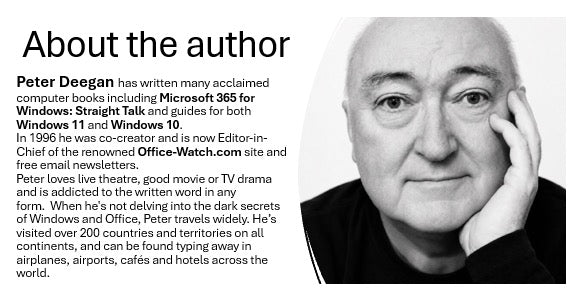
Peter Deegan
Peter Deegan has written about Microsoft Office since 1996, when he helped start Office Watch, the independent newsletter and site that has covered Office news, bugs and tips for nearly 30 years.
He takes the same line on AI. He is not a cheerleader and not a doubter. AI is not as good as the hype claims, and not as useless as the skeptics say. This book is the practical middle ground: what genuinely saves you time on email, and what to watch out for.

Frequently asked questions
Do I need to be good at Email or Outlook?
No. The book is written for everyday users. If you can open an email and write or reply to a message, AI can do most of the heavy lifting for you. The book shows you how to ask.
Do I need to be a good writer?
No. The book is written for everyday users. If you can type a rough note or a few bullet points, AI can turn it into a solid draft. The book shows you how to ask.
Which AI service do I need?
None in particular. The prompts work with the free tiers of Copilot, ChatGPT, Claude and Gemini, as well as the paid versions. Use whichever you already have, or switch between them.
Will it work with Gmail, Apple Mail or Outlook.com ?
Yes. Most of the book is AI prompts and techniques that work alongside any email program, or email you read in a browser. The Copilot inside Outlook 365 chapter is one part of the book, not the whole thing.
Won't AI make my email sound generic?
Only if you let it. A whole section covers writing styles, including how to build and save a personal style so your email sounds like you and not default AI slop.
Is it safe to put email into AI?
That depends on the tool and what you paste. The book is straight talk about the risks, with plain advice on protecting private information and never trusting AI facts, names or numbers without checking.
Email better and faster with any AI
AI Basics
- Side by side AI
- The Prompt: your side of the conversation
- The Response: what the AI sends back
- AI Chat: back and forth conversation
- AI buttons
- AI Services
- About AI models
- External Sources: on or off?
- Privacy & Security
New Emails
- Turn angry into helpful
- Emoji and Acronyms
- Personal
- Business
Replies
- Reply Prompt Essentials
- Reply from a source
- Proofreading
- Reply Prompts
The Hard Emails
- Condolences
- Protest emails
- Angry or rude emails
- Partial replies
- Deferring
- Saying no
Writing Styles
- Why style matters
- Quick and easy writing styles
- Parts of a writing prompt
- Make a personal writing style
- Personal Style library
Proofreading
Translation
- Translate and understand
- Cultural check
- Checking a translation
- Proofread translations
Copilot inside Outlook 365
- Who gets what?
- Copilot side pane
- Immersive Search
- Triage my inbox
- Writing
- Replies
- Summarize
- Coaching
- Prioritizing
- Schedule
Reusable Emails
- Whole Emails or Segments
- Quick Steps
- Reusable Content choices in Outlook
- Other options