Excel & AI Prompts eBook: Spreadsheets Better & Faster
Excel & AI Prompts eBook: Spreadsheets Better & Faster
Couldn't load pickup availability
Spreadsheets better & faster with any AI
You get:
- 180+ copy-ready AI prompts
- Over 155 pages of experienced advice
- Office Watch independent help & tips since 1996
- Any app: Excel (Microsoft 365, Office 2024, Office 2021 and earlier), Google Sheets, Apple Numbers, OpenOffice.
-
Any AI: ChatGPT, Copilot, Claude or Gemini
- No subscription or extra software needed
- Bonus searchable prompt file
- Instant PDF download
- Not useful? Email us within 14 days for a refund.
This plain-English guide shows how to get to build, fix, analyze, and tidy spreadsheets fast. Use ChatGPT, Copilot, Claude or Gemini — while keeping in control.
Essential secrets with smart help
AI doesn't just speed up the spreadsheets you already build. It changes what you can build. A complete budget workbook from a one paragraph description. A dashboard from a messy list. A working lookup from the words "I want to match these two tables." Conditional formatting rules that previously took 20 minutes of Googling now takes seconds.
But none of that works reliably if you point at a chatbot and hope. AI can be confidently wrong. It can write a formula that looks correct and quietly returns the wrong number. It can fabricate a function that doesn't exist in your version of Excel. It can mangle a data analysis in ways spell check has no equivalent for.
This book is the playbook for getting the AI speed and quality without the trouble.

The companion ebook to our enormously popular Writing better & faster with any AI.
You stay the spreadsheet maker. AI does the heavy lifting
The goal is not to let AI do your work for you. You stay the spreadsheet maker. AI proposes formulas, suggests layouts, writes the boilerplate code, generates fake data for testing, and explains what other people's formulas actually do. You stay responsible for accuracy, judgment, and decisions.
Think of AI as a power tool. In skilled hands it's fast, precise and liberating. In unskilled hands it produces sheets that look right and add up wrong.
The difference is not talent. It's technique: knowing what to ask for, knowing what to check, knowing how to iterate until the workbook actually works.
That technique is what this book teaches.
Works with any AI, any spreadsheet
No need to switch tools or subscribe to anything new. The book has prompts and examples for:
- ChatGPT, Copilot, Claude and Gemini
- Microsoft Excel, Google Sheets, Apple Numbers and OpenOffice
Including a dedicated chapter on Copilot inside Excel 365 or the Claude addon.

What you'll actually use it for
Formulas
- Write formulas from a plain English description ("sum sales where region is West and date is in Q3")
- Fix broken formulas by pasting them in and asking why
- Understand someone else's formula without spending an afternoon decoding it
- Translate formulas between Excel, Google Sheets and other apps when functions don't match
Functions
- Find the right function for a job when you don't know what to search for
- Understand functions properly, beyond the one line Microsoft help description
- Get function help in any language, useful for international teams
Data analysis and dashboards
- This is where AI changes the game most dramatically. Feed AI a list or table, ask the right question, and you get:
- Quick summaries of large data sets
- Category and supplier analysis without manually building pivot tables
- Trends, comparisons, and anomaly detection
- Cash flow and payment status breakdowns
- Calculated columns added to your existing data
- Complete dashboards with charts, ready to drop into a workbook
Complete workbooks from a single prompt
AI can build a working spreadsheet from a description. Budgets, vacation planners, project trackers, inventory sheets. The book shows how, with worked examples in Gemini, Claude, ChatGPT and Copilot, plus the prompting tricks that produce something usable rather than a generic template.
Conditional formatting
Conditional formatting is one of Excel's most useful features and one of its most confusing. Once you're past the simple presets, the rules get fiddly. AI can give you step by step instructions for the exact rule you want, or write the rule formula directly.
VBA and Power Query
The two scariest corners of Excel, suddenly accessible:
- VBA macros written, explained and debugged
- Power Query (M) code generated from plain English descriptions
You don't need to learn either language to use them effectively. The book shows you how.
The extras nobody else covers
A chapter of practical tricks that turn good spreadsheets into better ones:
- Convert handwritten or printed equations into working Excel formulas
- Generate fake but realistic data for anonymous testing and demos
- Create unique icons and graphics for sheets and dashboards, in matching color sets
- Convert an image of a table into a real spreadsheet, better than Excel's built in tool
- Turn numbers into words and back, for cheques, invoices, and legal documents
- Transform text from inconsistent inputs into a clean standard format
- Use Python in Excel with AI assistance
-
Markdown explained for spreadsheet users, including how to convert Markdown tables into real sheets
180+ ready to copy prompts
The core of the book is real, tested prompts. More than 180 longer prompts come in a bonus document, grouped by chapter and searchable.
No retyping. Copy, adapt, reuse.
That alone is worth the price. Everything else is gravy.

Who it's for
- Everyday spreadsheet users who want better results in less time
- Office professionals who need budgets, reports, and dashboards on a deadline
- Accountants, bookkeepers and finance staff wanting to speed up routine analysis
- Small business owners building their own tracking sheets, invoices, and inventory
- Anyone who's ever stared at an #ERROR and wondered what they did wrong
- Excel power users who want to leverage AI without learning the hard way which AI tells lies about Excel
- AI skeptics who suspect there's something useful here but don't trust the hype
Plain English, independent advice. No AI company sponsors this book. No marketing speak. No breathless promises.
What you'll learn (highlights)
- Write any formula by describing what you want in plain English
- Build a dashboard from a messy list of data
- Make AI write, change or fix VBA and Power Query code you can actually trust
- The right AI for the right job across ChatGPT, Copilot, Claude and Gemini
- Use Copilot inside Excel 365 and where it earns its keep
- Protect sensitive spreadsheet data when using AI tools
-
Convert images, equations, words, and Markdown into working sheets
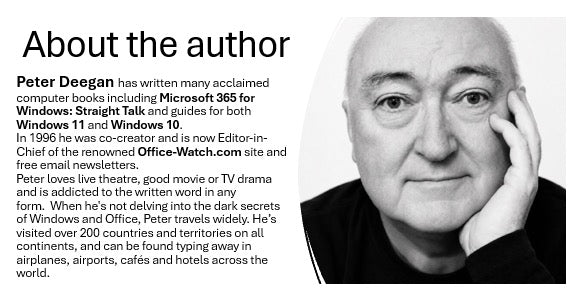
Peter Deegan
Peter Deegan has written about Microsoft Office since 1996, when he helped start Office Watch, the independent newsletter and site that has covered Office news, bugs and tips for nearly 30 years.
He takes the same line on AI. He is not a cheerleader and not a doubter. AI is not as good as the hype claims, and not as useless as the skeptics say. This book is the practical middle ground: what genuinely saves you time on email, and what to watch out for.

Frequently asked questions
Do I need to be good at Excel?
No. The book is written for everyday users. If you can open a spreadsheet and enter data, AI can do most of the heavy lifting for you. The book shows you how to ask.
Which AI service do I need?
None specifically. The book works with the free tiers of ChatGPT, Copilot, Claude and Gemini, as well as the paid versions. Use whichever you already have or switch between them.
Will it work with Google Sheets or Apple Numbers?
Yes. Most of the book is AI prompts and techniques that work with any spreadsheet app. The Excel-specific chapters (Copilot in Excel, Claude for Excel) are one part of the book, not the whole thing.
What about VBA and Power Query? I've never written code.
That's the point. You don't need to. The book shows how to get AI to write, explain and fix the code for you, in plain English, so you can use VBA macros and Power Query without learning either language.
Spreadsheets better & faster with any AI
- Any app, any AI
- Let AI do some heavy lifting
- But there’s more …
- Avoid the traps
- Prompts Bonus
AI Basics
- Side-by-side AI
- The Prompt: Your Side of the Conversation
- The Response: What the AI Sends Back
- AI Chat: Back-and-Forth Conversation
- AI buttons
- AI Services
- About AI models
- ·External Sources: On or Off?
- Privacy & Security
Formulas
- Making formulas
- Convert or improve a formula
- Understanding formulas
- Fixing formulas
- Translation
Functions
- Find a Function
- Understand a function
- In-depth Functions
- Functions in specific cases
- Languages
Data Analysis
- Quick Summary
- Starter prompts
- Category and supplier analysis
- Trends and comparisons
- Anomalies and possible errors
- Cash-flow and payment-status
- Calculated columns
- More demanding prompts
Making Complete Workbooks
Try the same example prompt in
- Gemini
- Claude
- ChatGPT
- Copilot on the web
Other complete workbook prompts
Conditional Formatting
- Prompt Basics
- Step-by-Step
- More prompts
VBA & Power Query
- VBA
- PowerQuery (M)
Equations to Formulas
- Equation Image as input
- Explaining a formula
- Converting to Excel
- Converting to LaTeX
Random data
- Names, addresses, phone numbers and a lot more
- Using Python
Markdown
- What is Markdown?
- Convert Markdown to sheet
Copilot inside Excel 365
- Model
- Personalization
- Sources
- Plan
- Analysis
- Make a Dashboard
- Complete sheet made by Copilot
- Copilot()
- Conditional Formatting
Claude in Excel
- Make a Dashboard
- Conditional Formatting
- Requirements, Installation
- Settings, Side-Pane
Icons for Sheets
- Grid or Contact Sheet
- Getting the finished icon
- Same graphic – different colors
More AI spreadsheet tricks
- Image to Sheet
- Convert Word to Numbers or Vice-versa
- Reformatting text